KeOS Setup
Install via PC (recommended)
Windows 10 / 11
Windows helper for installers and hotel IT — deploy KeOS TV to the box over Wi‑Fi in 3 steps
Download KeOS Setup installer.zip · Windows 10/11installer.zip · contains KeOSSetup-Setup-1.0.0.exe (~54 MB)
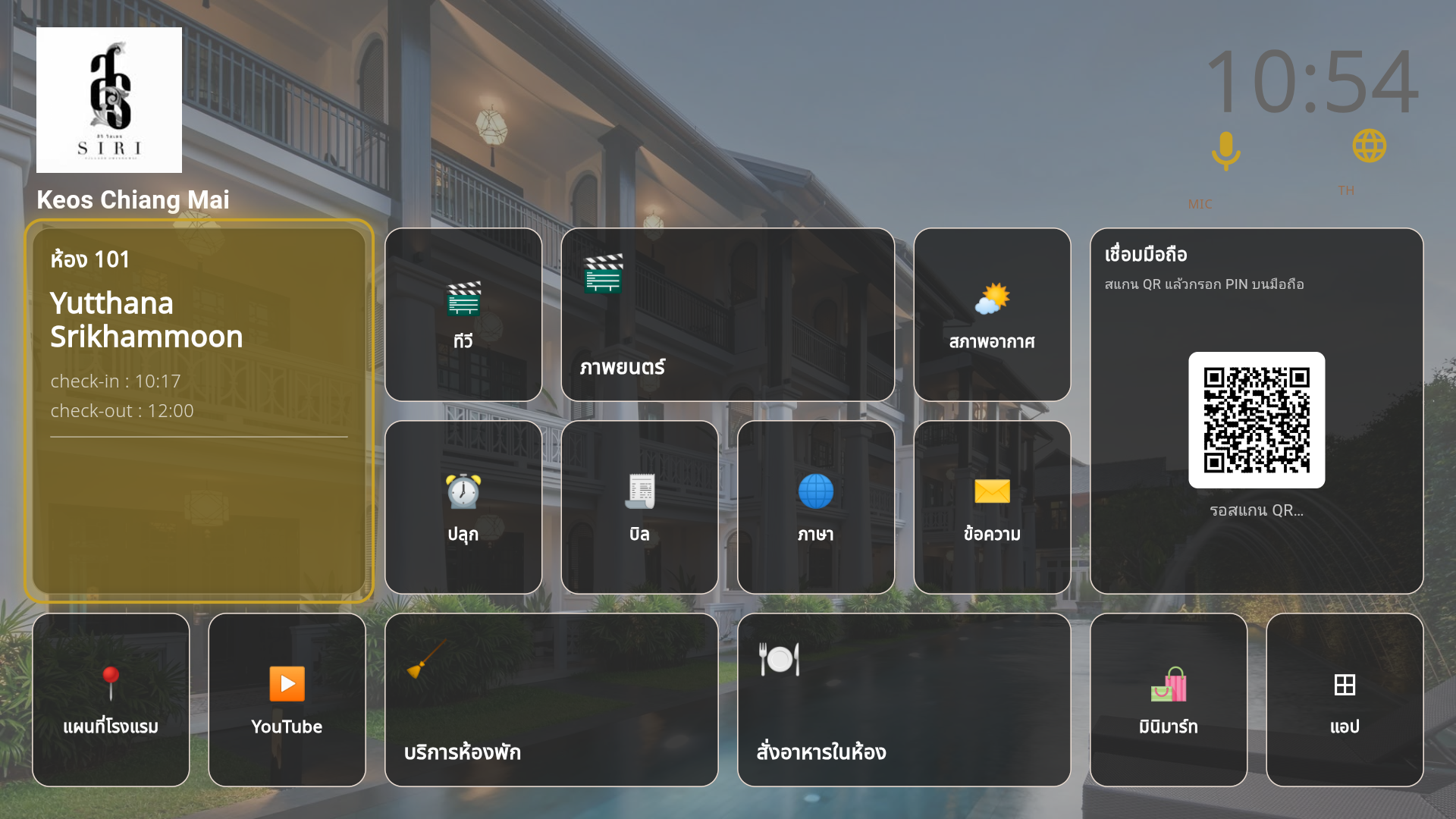
Correct IP → check passes → install → Portal assign room
No USB cable, no Android Studio — PC and box on the same LAN/Wi‑Fi
Install on PC (first time)
- 1.Run KeOSSetup-Setup-1.0.0.exe (extract from zip)
- 2.Click Next through the wizard — no Android Studio or USB drivers
- 3.Open KeOS Setup from the Start Menu
Prepare the TV box (on the box)
- 1.Connect HDMI to the TV
- 2.Connect Wi‑Fi or LAN on the same network as the PC
- 3.Enable Developer mode — Settings → About → tap Build 7 times
- 4.Settings → Developer options → enable Wireless debugging
- 5.Note the box IP (Settings → Network)
- 6.Tap Pair device with pairing code → note Port and 6-digit code
Some Android 10 boxes lack Wireless debugging — use browser install instead (Help menu)
Using the app — 3 steps
Step 1: Prepare the box
- 1.Enter the box IP in the field at the top
- 2.Check Done
- 3.Click Check → wait for Box ready ✓
- 4.Click Next
If check fails → Tools → Connect to box, enter Pair port + 6-digit code → Pair → Connect → run Check again
Step 2: Install
- 1.Review Firmware version (fetched from Cloud)
- 2.Click Install KeOS
- 3.Wait for Install complete ✓
Before install the app asks: KeOS already installed → Overwrite? · Not installed → installing to box (to remove later → factory reset on box) · You can tick Don't show again
Step 3: Ready
- 1.Note Serial (in app or on TV, e.g. WUE-XXXX)
- 2.Click Open Portal to assign room
- 3.In Portal → adopt / assign room per KeOS workflow
Common menus
| File → Settings | Server URL, Auto/Manual APK mode |
| Tools → Connect to box | Pair / Connect (code from TV screen) |
| Tools → Fetch latest firmware | Update version before install |
| Help → Install via browser | When Wi‑Fi ADB is unavailable |
| Tools → Show details | View logs for troubleshooting |
Quick status (status bar)
Box: found (192.168.x.x:5555) | Dev: OK | Server: keos1.campnows.com
- Dev: OK = ready to install
- Dev: FAIL / not found = check Wi‑Fi, IP, Wireless debugging
Common issues
| Ping fails | Check IP, Wi‑Fi on different subnet |
| Pair fails | Code expired → open Pair again on TV |
| Connect fails | Pair first, then Connect |
| Install fails | Tools → Show details → send log to Support |
Alternative: install via browser on the box (below) — when no Windows PC is available